OptMem Tutorial 2026 — Give Your AI Agent Permanent Memory in 60 Seconds
OptMem Tutorial 2026 — Give Your AI Agent Permanent Memory in 60 Seconds
The Problem
Every AI agent session starts with amnesia. Your agent doesn’t remember what it learned last week, what decisions were made in the previous session, or what conventions the team established. You can try putting instructions in AGENTS.md or CLAUDE.md, but those are static — they don’t capture the organic learnings that accumulate during real work.
OptMem solves this with shocking simplicity: a 426-token prompt and a single Python script. No database, no vector store, no cloud service. Just a file-based memory system that survives every session restart, model change, and compaction cycle.
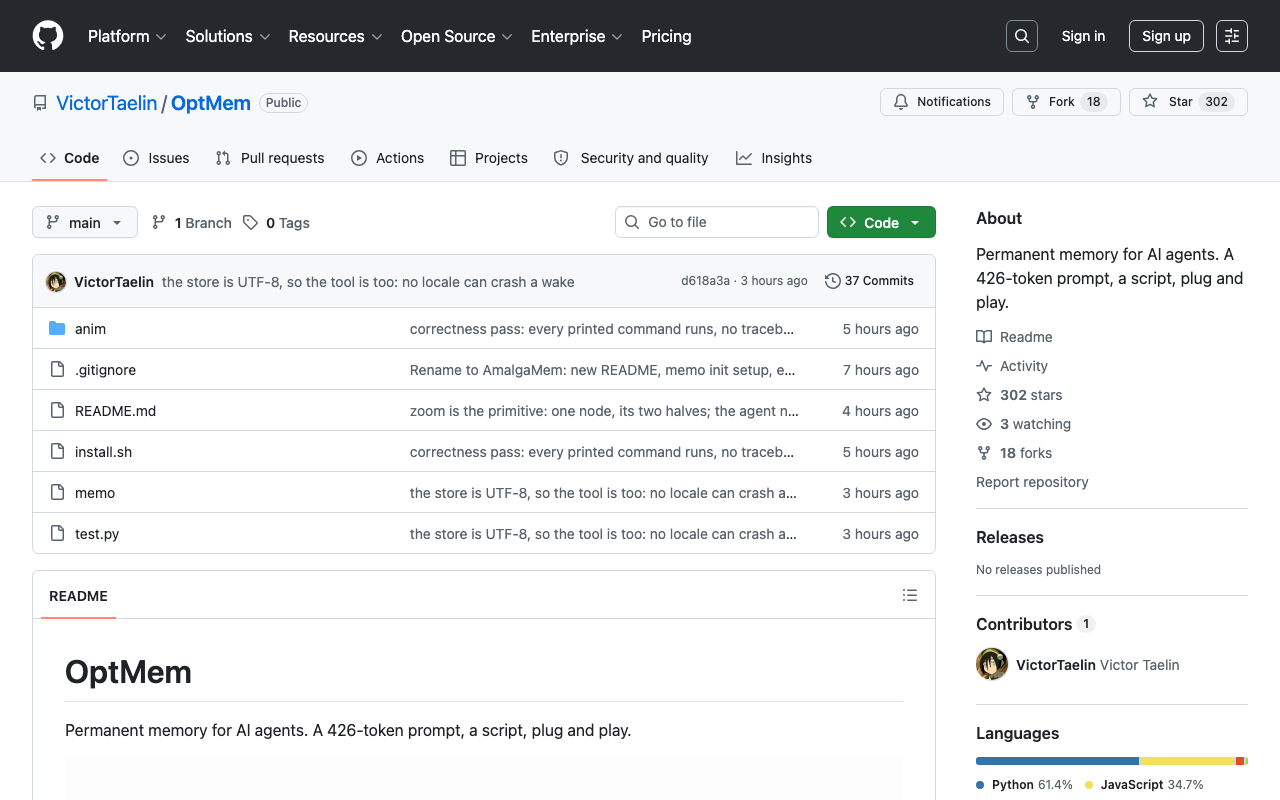
Created by Victor Taelin (known for HVM, Bend, and Kind language), OptMem is a “permanent memory for AI agents” that’s been trending on GitHub with 301 stars as of July 27, 2026:
“Permanent memory for AI agents. A 426-token prompt, a script, plug and play.”
How It Works
OptMem is radically simple. The memory system is built on three principles:
- Append-only log — every memory is a single line (max 280 chars) appended to
LOG.txt - Merkle-style tree summaries — as the log grows, OptMem automatically compresses old memories into summarized tree nodes
- Position = identity — fixed-width records mean every lookup is one seek (0.03s at 1 million memories)
There’s no database, no indexing service, no background process. The tool is one file of Python 3 with zero dependencies.
Step 1: Install OptMem
Installation is a single command:
curl -fsSL https://raw.githubusercontent.com/VictorTaelin/OptMem/main/install.sh | shThis does three things:
- Downloads the
memotool to~/.optmem/memo - Creates the
~/.optmem/memory/directory structure - Prints a
## Memoryblock that you paste into your agent’s configuration file
The entire output is a prompt block — you paste it into AGENTS.md, CLAUDE.md, or your agent’s system prompt. That’s the integration. No plugins, no API calls, no configuration.
Total time: about 10 seconds.
Step 2: Integrate with Your Agent
Copy the printed ## Memory block into your agent’s configuration file. Here’s what it looks like:
## Memory

Your memory is OptMem:
- The tool is `~/.optmem/memo`
- Your memories are in `~/.optmem/memory`

OptMem outlives every session, compaction, model and vendor change.
Without it you do not know who you are, or what was decided and tried.

### At startup: activating OptMem (mandatory)

Run `~/.optmem/memo wake` before any other tool call, in every
session, and then do exactly what it prints, to the end of its output.

### While working: register memories (mandatory)

Call `~/.optmem/memo note "<1 line, max 280 chars>"` whenever you learn
something new, or something worth keeping happens.

### When you need an old memory: search, or navigate

`~/.optmem/memo recall <regex>` searches every memory ever recorded.

If `~/.optmem/memo note` asks a compression: do it before your next action.
For Claude Code users, paste this into CLAUDE.md. For Cursor users, add it to your project’s .cursorrules. For any MCP-compatible agent, include it in the system prompt.
Step 3: The Memory Workflow
OptMem uses four main commands:
memo wake — Start Every Session
~/.optmem/memo wakeThis reads recent memories relevant to your current context. Run it at the start of every session. It prints your most recent memories and any pending compressions.
memo note "..." — Record a Memory
~/.optmem/memo note "Decided to use function calling over tool-use for data pipeline — 40% faster"
~/.optmem/memo note "User prefers squash-merge over merge commits on main branch"
~/.optmem/memo note "Found a workaround for the OpenClaw rate-limiting issue: add 200ms delay"
Each note is a single line (max 280 chars). When the log reaches certain thresholds, OptMem asks for a compression — you summarize a range of memories into one sentence.
memo recall <regex> — Search Memories
~/.optmem/memo recall "deploy"
~/.optmem/memo recall "pipeline|workflow"
~/.optmem/memo recall "prefer"
Returns every memory matching the regex. Since records are fixed-width, this is fast even at scale.
memo nap — Process Compressions
When compression is needed, memo note will prompt you. Run memo nap to answer pending merges. OptMem shows you a block of memories and asks for a summary — you provide one line, and it stores the compressed node.
Practical Examples
Example 1: Coding Convention Memory
Instead of repeating “use JSDoc with type annotations” in every session prompt, train your agent once:
memo note "Project convention: JSDoc with @param and @returns required for all exports"
memo note "Editor config: 2-space indent, no semicolons, single quotes for strings"
The agent wakes up, runs memo wake, sees these conventions, and applies them automatically.
Example 2: User Preference Tracking
memo note "User prefers verbose git commit messages with conventional commits format"
memo note "User likes preview before any destructive operation (rm, mv, chmod)"
memo note "User's review checklist: check for edge cases, add error handling, verify types"
Over time, your agent learns how you work and adapts its behavior — no need to remind it every session.
Example 3: Debugging Knowledge
memo note "Issue with WebSocket reconnect: server closes after 30s idle — fixed by ping every 25s"
memo note "Build fails when Xcode 16+ not found — check DEVELOPER_DIR env var"
memo note "Rate limiting on API-X: max 100 req/min, batch by 50 with 500ms gaps"
The agent accumulates debugging knowledge across sessions. When it encounters a similar issue later, it recalls the fix immediately.
Optimizing WAKE_LINES
The default WAKE_LINES=208 (~16k tokens) works for most cases. You can adjust:
memo config WAKE_LINES=300   # More context per session
memo config WAKE_LINES=100   # Faster wake, less context
Higher values give your agent more context but cost more tokens. Lower values are cheaper but may miss older memories.
Advanced: Shared Memory with $MEMORY_DIR
Set $MEMORY_DIR to a synced folder to share memory across machines:
export MEMORY_DIR=/path/to/synced/dropbox/memoryAll agents on all machines share the same memory. This is useful for team workflows where multiple agents (or humans) contribute to a shared knowledge base.
How OptMem Compares
| Feature | OptMem | Vector DBs | Memory MCP | Agent-specific memory |
|---|---|---|---|---|
| Zero dependencies | ✅ One Python file | ❌ Heavy infra | ⚠️ Requires MCP | ❌ Vendor-specific |
| Setup time | ~10 seconds | Hours-days | Minutes | Varies |
| Cross-agent | ✅ Same prompt works everywhere | ❌ Custom integration | ⚠️ MCP-only | ❌ Single agent |
| Privacy | ✅ Fully local | ⚠️ Depends on setup | ✅ Local option | ❌ Often cloud |
| Cost | $0 | Infrastructure costs | Free tier | Often subscription |
| Max memories | Effectively unlimited (0.03s per seek) | Limited by storage | TBD | Limited by session |
| Cross-session | ✅ Yes | ✅ Yes | ✅ Yes | ❌ No |
Tips for Best Results
Do
- Use specific, actionable notes — “prefers squash-merge” vs “likes clean git history”
- Note failures and workarounds — these compound in value over time
- Review compression quality periodically — bad summaries degrade recall
- Set
$MEMORY_DIRto a git repo — version-control your agent’s memory
Don’t
- Don’t record every trivial detail — 280 chars per note forces prioritization
- Don’t skip compression — it seems optional but keeps the system fast
- Don’t edit the files manually — OptMem manages the data format, manual edits break it
- Don’t use vague notes — “fixed something” is worthless in recall
Conclusion
OptMem solves agent amnesia with minimalism: 426 tokens of prompt, one Python script, and a philosophy of append-only logging with tree-based compression. It’s not a vector database or a cloud service — it’s a pattern for persistent memory that any agent can use.
In 60 seconds, you can give your AI agent permanent memory that survives every session restart, compaction, and model change. The agent wakes up knowing who you are, what you prefer, and what was decided — every time.
Difficulty: Beginner — installation takes one curl command and a copy-paste into your agent config.