Build a Daily AI Productivity Workflow: Automate Repetitive Tasks in 2026
The Daily Productivity Problem
Knowledge workers spend an average of 30% of their workday on repetitive tasks: triaging email, scheduling meetings, taking notes, and tracking action items. These tasks don’t require your unique skills — and AI can handle them.
This guide builds an integrated productivity system using 4 AI tools.
Your AI Productivity Stack
| Tool | Role | Cost |
|---|---|---|
| AI Email Assistant (Shortwave/Superhuman AI) | Email triage & responses | $10-25/mo |
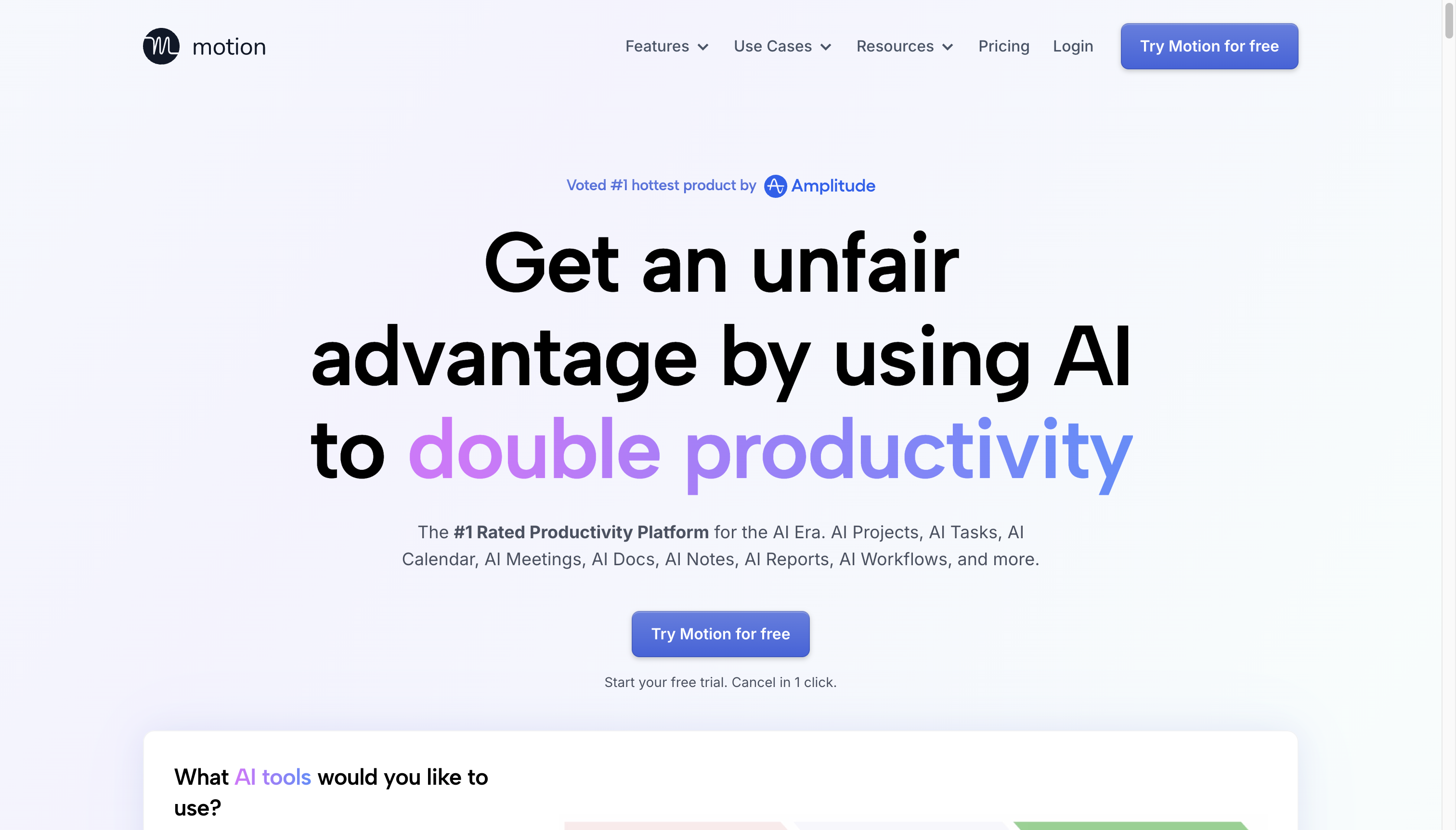
| Motion/Reclaim AI | Calendar optimization | $20-30/mo |
| Otter.ai/Fireflies | Meeting transcription & notes | Free-20/mo |
| Notion AI + ChatGPT | Task management & synthesis | $10-20/mo |
| Total | $40-95/mo |
Step 1: AI Email Triage
Start your day with an AI email assistant.
Setup:
- Connect your email to Shortwave or enable Superhuman AI
- Configure your triage categories: “Urgent Client,” “Internal,” “Newsletters,” “Spam”
- Set up auto-responses for common queries: “Can we meet?”, “What’s the status?”, “Can you review this?”
Morning routine:
- Open email → AI has already sorted into priority stacks
- Review “Urgent” first (usually 3-5 emails after AI filtering)
- Scan “Internal” for quick responses
- Delete “Newsletters” stack in one click
- Time spent: 5-7 minutes vs 20-30 minutes before
Step 2: Calendar Optimization with AI
Let AI optimize your schedule.
Setup with Motion:
- Connect your calendar and task list
- Define “focus time” blocks (2+ hours, no meetings)
- Set meeting preferences (duration, advance notice, buffer time)
- Motion auto-schedules tasks into available slots
Pro tip: Block 9-11am every day as “deep work” — Motion will never schedule meetings there.
Step 3: Automated Meeting Notes
Never take manual meeting notes again.
Setup with Otter.ai:
- Connect Otter to your calendar — it auto-joins meetings
- Upload the names and roles of regular attendees
- Enable “Action Item Detection”
- Set up automatic sharing to Notion or Slack
After each meeting:
- Otter sends a summary with action items
- Review for accuracy (takes 30 seconds)
- Action items are already in your task system
Step 4: AI Task Management
Notion AI Workflow:
- Create a “Daily Inbox” database page
- Use the “AI Auto-triage” template (summarizes and categorizes incoming items)
- Configure a “Daily Review” page that AI populates with:
- Yesterday’s completion status
- Today’s priority tasks (auto-sourced from email/meetings/calendar)
- Suggested focus areas based on deadlines
Evening review (5 min):
- Ask Notion AI: “What were my top 3 accomplishments today?”
- Review tomorrow’s auto-generated priority list
- Adjust if needed
Step 5: Weekly AI Retrospective
End each week with an AI-powered review.
Prompt for ChatGPT/Claude:
Based on this week's data — meeting notes, completed tasks, and email volume:
1. What patterns do you see in how I spent my time?
2. Which activities produced the most value?
3. What should I eliminate or delegate?
4. Suggest 3 changes for next week.
The Complete Daily Flow
Morning (5 min): Review AI-triaged email
                   ↓
Mid-morning: Deep work (focus time)
                   ↓
Lunch: AI calendar suggests optimal afternoon
                   ↓
Meetings: AI takes notes automatically
                   ↓
End of day (5 min): AI-synthesized summary + tomorrow's priorities
Expected Time Savings
| Task | Before (daily) | After (daily) | Saved |
|---|---|---|---|
| Email management | 45 min | 10 min | 35 min |
| Calendar coordination | 20 min | 5 min | 15 min |
| Meeting notes | 30 min | 5 min | 25 min |
| Task prioritization | 15 min | 5 min | 10 min |
| Total | 1h 50m | 25 min | 1h 25m |
Getting Started
Start with just one tool. Most people find the biggest immediate gain from AI meeting notes (Otter/Fireflies) or AI email triage. Add the next tool once you’re comfortable. Within two weeks, the system will save more time than it costs.