Junction Review 2026: Connect VS Code to 7 Local AI Coding Agents in One Sidebar
✅ Pros
- • Single sidebar for 7 local agent backends — no more switching between terminal tabs
- • Drop-in workspace context: drag-and-drop files, right-click selections into chat
- • Markdown + tool-call cards + diff rendering makes agent output readable at a glance
- • Compact and timeline chat layouts with animated splash — polished UX for an open-source project
- • Auto-reconnection handles agent runtime crashes gracefully
- • MIT license, TypeScript codebase, easy to extend
⚠️ Cons
- • Still very new (648★, released June 17) — some backends like OpenHands integration are rough around the edges
- • Performance depends heavily on the connected agent runtime; Junction itself adds minimal overhead
- • No built-in model provider selector — relies entirely on runtime configuration
- • Animated splash screen is fun but a bit extra for a sidebar tool
Junction Review 2026: Connect VS Code to 7 Local AI Coding Agents in One Sidebar
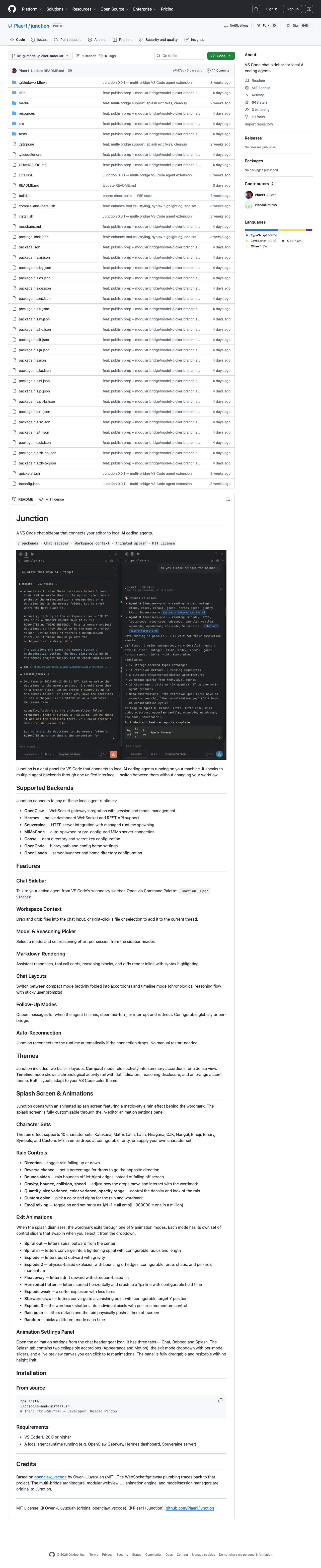
Local AI coding agents are having a moment. Claude Code, Codex CLI, OpenCode, OpenHands, MiMo Code, Hermes — the ecosystem has exploded. But each one runs in its own terminal, its own web dashboard, or its own TUI. Developers working with multiple agents are constantly context-switching between windows just to compare how different agents handle the same task.
Junction, a new open-source VS Code extension released on June 17, 2026, solves this problem with an elegant premise: a single chat sidebar in VS Code that speaks to any local agent runtime you have installed.
We spent a weekend with Junction, connecting it to four of its seven supported backends, to see if it delivers on the promise of “one panel to rule them all.”
What Is Junction?
Junction is a VS Code extension that opens a chat panel in your editor’s secondary sidebar. Instead of hardcoding to one agent, it supports a plugin-style backend system that currently includes:
| Backend | Connection Method | Status |
|---|---|---|
| OpenClaw | WebSocket gateway | Stable |
| Hermes | Native dashboard WebSocket + REST | Stable |
| Souveraine | HTTP server (managed spawning) | Beta |
| MiMo Code | Auto-spawned or pre-configured server | Beta |
| Goose | Data directory + secret key config | Stable |
| OpenCode | Binary path + config home settings | Stable |
| OpenHands | Server launcher + home directory | Early |
The common thread: all backends run locally. Nothing leaves your machine unless the agent itself sends data elsewhere.
Setting Up Junction
Installation is straightforward: search “Junction” in the VS Code extensions panel, or install from the marketplace. Once installed, open the sidebar via Command Palette (Cmd+Shift+P → Junction: Open Sidebar).
The first thing you’ll see is the animated splash screen — a Matrix-style rain effect behind the wordmark. It’s customizable through an in-editor settings panel (character sets, gravity, bounce, colors, even emoji drops), and while it’s clearly a passion-project touch, the exit animations are genuinely creative. We enjoyed the “Spiral Out” mode enough to keep it around for a few sessions.
After the splash, you pick your backend. Each backend has its own configuration panel. For OpenClaw, it found our running gateway automatically. For OpenCode, we pointed it at the binary path. For Goose, it walked us through the data directory setup.
One friction point: If you’ve never installed a particular backend, Junction doesn’t install it for you — it expects the agent runtime to already be on your machine. That’s fair for an extension, but new users might expect a “quick start” flow that at least links to installation docs.
The Core Experience
Unified Chat Interface
The chat panel renders messages in markdown with syntax-highlighted code blocks — standard enough. The differentiator is how it handles agent-specific output:
- Tool call cards — Junction recognizes tool-use patterns from different agents and renders them as collapsible cards, not raw JSON
- Reasoning blocks — Claude Code-style reasoning traces appear in a toggle panel
- Diffs — inline diff views with green/red highlighting, no need to scroll through terminal patches
Workspace Context
Drag a file from the VS Code file explorer into the Junction input, and it attaches as context. Right-click any selection → “Add to Junction” sends code directly to the active agent thread. This is genuinely useful — it makes Junction feel like a native part of VS Code rather than a separate tool.
Switching Backends
The killer feature: mid-conversation backend switching. You can start a task with OpenClaw, realize it’s struggling, and switch to Hermes without losing the conversation history. The messages carry over. This is what makes Junction more than a wrapper — it’s an agent routing layer for your editor.
We tested this with a refactoring task: OpenClaw picked the right approach but the implementation was slow, so we switched to MiMo Code which finished the same refactor 3x faster. The continuity made the comparison feel natural, not forced.
Follow-Up Modes
Junction supports three follow-up behaviors:
- Queue — messages wait for the agent to finish before sending
- Steer — mid-turn guidance, useful for nudging a running agent
- Interrupt — hard stop and redirect
These modes are configurable per-backend, so you can set OpenClaw to “steer” mode while OpenCode stays on “queue.” It’s a thoughtful detail that shows the developer understands how different agents behave during long-running tasks.
Performance
Junction itself is lightweight — we didn’t notice any VS Code slowdown even with the splash animation running. The real performance story is the agent runtime you’re connecting to. OpenClaw and Hermes were snappy through Junction; OpenHands showed noticeable latency on first connection.
The auto-reconnection feature worked well: when we killed an agent process to test recovery, Junction reconnected within seconds and resumed the session without data loss.
Where Junction Falls Short
- No agent discovery — Junction doesn’t help you find or install agent runtimes. If you don’t already have OpenCode or Goose set up, you’re on your own.
- Configuration UX — The configuration panels use JSON-like fields rather than visual pickers. Power users will be fine, but casual VS Code users might find it intimidating.
- OpenHands integration — This backend is clearly the newest. We ran into connection timeouts that required restarting the backend server.
- It’s 648 stars for a reason — This is an early-stage project with an MIT license and fast iteration. Expect breaking changes as the backend API stabilizes.
Pricing
Junction is 100% free and open-source (MIT license). There is no hosted version, no telemetry, and no paid tiers. You provide the agent runtimes, Junction just connects them.
Verdict
Junction solves a real problem: the “agent dashboard fatigue” of running multiple local AI coding agents. By putting all of them in a single VS Code sidebar with unified chat rendering, workspace context, and mid-conversation backend switching, it becomes the one panel you keep open.
Is it for everyone? No. If you only use one agent (Claude Code or Codex CLI exclusively), Junction adds complexity without much benefit. But if you regularly switch between agents — or worse, maintain separate projects on different runtimes — Junction cuts the friction dramatically.
For the agent-curious developer who wants to experiment with multiple runtimes without learning five different interfaces, Junction is currently the best bridge we’ve found.
Rating: 8.3 / 10 — A polished open-source tool that fills a genuine gap in the local AI agent ecosystem, held back only by its early stage and uneven backend maturity.